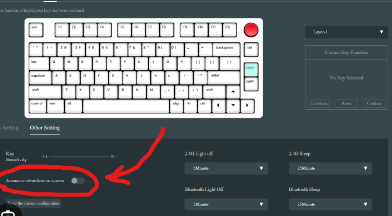
Alt and Windows key conflicts on keyboards can disrupt workflow, especially for those reliant on hotkeys for efficiency. These key conflicts often occur when both alt and windows key switched are programmed for multiple functions or when software inadvertently overrides default functionalities. If you’re frequently facing this issue, there are simple fixes that can restore harmony to your keyboard. Below are a few practical solutions to resolve these conflicts quickly.
Identify the Source of the Conflict
The first step in addressing Alt and Windows key conflicts is identifying what’s causing the issue. Common culprits include customized keyboard shortcuts, operating system updates, or third-party applications with hardcoded hotkey commands.
• Check keyboard shortcuts: Open your shortcut settings on your operating system or apps in use. Identify any custom commands involving the Alt or Windows keys that could conflict.
•
• Identify third-party software: Programs like video recording or gaming software often overwrite key settings. Disable or modify their shortcuts to regain control.
•
• Operating system conflicts: Sometimes, OS updates bring new default shortcuts that conflict with existing key bindings. Browsing through the OS shortcut settings can help in restoring order.
•
Remap Keys for Custom Settings
If you’re unable to resolve the conflict by changing default settings, consider remapping your keyboard keys. Software tools make this process simple and allow you to define more convenient shortcuts.
• Use keyboard utilities: Tools like SharpKeys or AutoHotkey are easy to set up and allow you to redefine problematic shortcuts. For example, remap “Alt+Tab” to another combination if it conflicts with your current setup.
•
• Create custom scripts: With scripting tools like AutoHotkey, specific commands such as disabling one of the keys temporarily can also solve conflicts effectively.
•
Reset and Troubleshoot
A more drastic, yet simple fix for persistent problems is resetting your keyboard settings.
• Restore default settings: Navigating to your keyboard settings and restoring default configurations can often eliminate unknown or accidental conflicts.
•
• Update keyboard drivers: Outdated or corrupted drivers are known to cause key binding issues. Updating these from official sources can quickly resolve the problem.
•
• Test hardware: Sometimes, the issue may stem from physical key malfunctions due to wear and tear. Consider testing the keyboard on a different device to confirm whether it’s a software or hardware issue.
•
Keep Your Workflow Efficient
Alt and Windows key conflicts can feel disruptive, but with the above fixes, they’re manageable. Whether through identifying specific conflicts, remapping key functions, or resetting settings, there’s always an actionable solution. Proactive maintenance, like periodic settings reviews or hardware checks, can further ensure these key issues won’t catch you off guard in the future. Keep your workflow seamless with these simple adjustments!